For bookkeepers
Working in the firm workspace: from work queue to calendar
This is how a bookkeeping firm works in booxx: you open the work queue, see which client needs attention, do the same task for all your clients in a row and ask your client a question on a screen in their own language.
In short
In the firm workspace of booxx, a bookkeeping firm runs all its client administrations from one work queue. Each administration is one row, with fixed columns for the VAT deadline, the bank transactions still to be matched, the documents still to be validated and the reconciliation checks that are red; the most urgent row is on top. With a work run you choose one kind of work and go through every administration where that work is waiting, using the buttons Next, Previous, Later and Stop. The calendar shows per week which VAT deadlines are coming up and which returns are ready. A firm administrator decides per staff member which clients and administrations they may work in.
The essentials
- Work queue
- One row per administration, sorted by urgency. Six counters at the top act as filters: Late, This week, Checks, To process, Questions and On track.
- Work run
- One kind of work for all clients in a row. Shortcuts: ] for Next, [ for Previous and Esc to stop.
- Permissions
- Two roles: Administrator and Staff. A staff member only sees the clients and administrations assigned to them.
- Insights
- Per month: administrations in order, returns on time, turnaround of documents and bank, work per staff member and what went automatically.
How do you see which client has work waiting?
The work queue is the screen a firm lands on. Each administration is one row. If a client runs a sole proprietorship next to a B.V., that is two rows, each with its own numbers: they are two sets of books, each with its own VAT return. The list sorts itself by urgency. A VAT return that is past its deadline weighs heaviest, followed by a failed import and reconciliation checks that are red.
Red is what is already going wrong. Amber is what needs attention before it goes wrong, by default a VAT deadline within 10 days while work is still open. Ordinary work, such as bank transactions still to be matched, gets no colour: that is a backlog, not a problem. Every number is a click to that work: you open the administration straight on the bank book, the documents or the reconciliations. The firm administrator sets the thresholds behind the colours.
The six counters above the work queue
| What it counts | What you do with it | |
|---|---|---|
| Late | Administrations whose VAT return is past its deadline. | Start here. These administrations are also at the top of the list. |
| This week | Administrations with a VAT deadline within 7 days. | You see what has to be finished this week. |
| Checks | Administrations with red reconciliation checks. | You open the administration on the reconciliations. |
| To process | Administrations with bank transactions to match or documents to validate. | The ordinary backlog: well suited to a work run. |
| Questions | Administrations with open questions, waiting for the client or already answered. | You see where a client has replied. |
| On track | Administrations with nothing open, as a number out of the total. | You see how your portfolio is doing. |
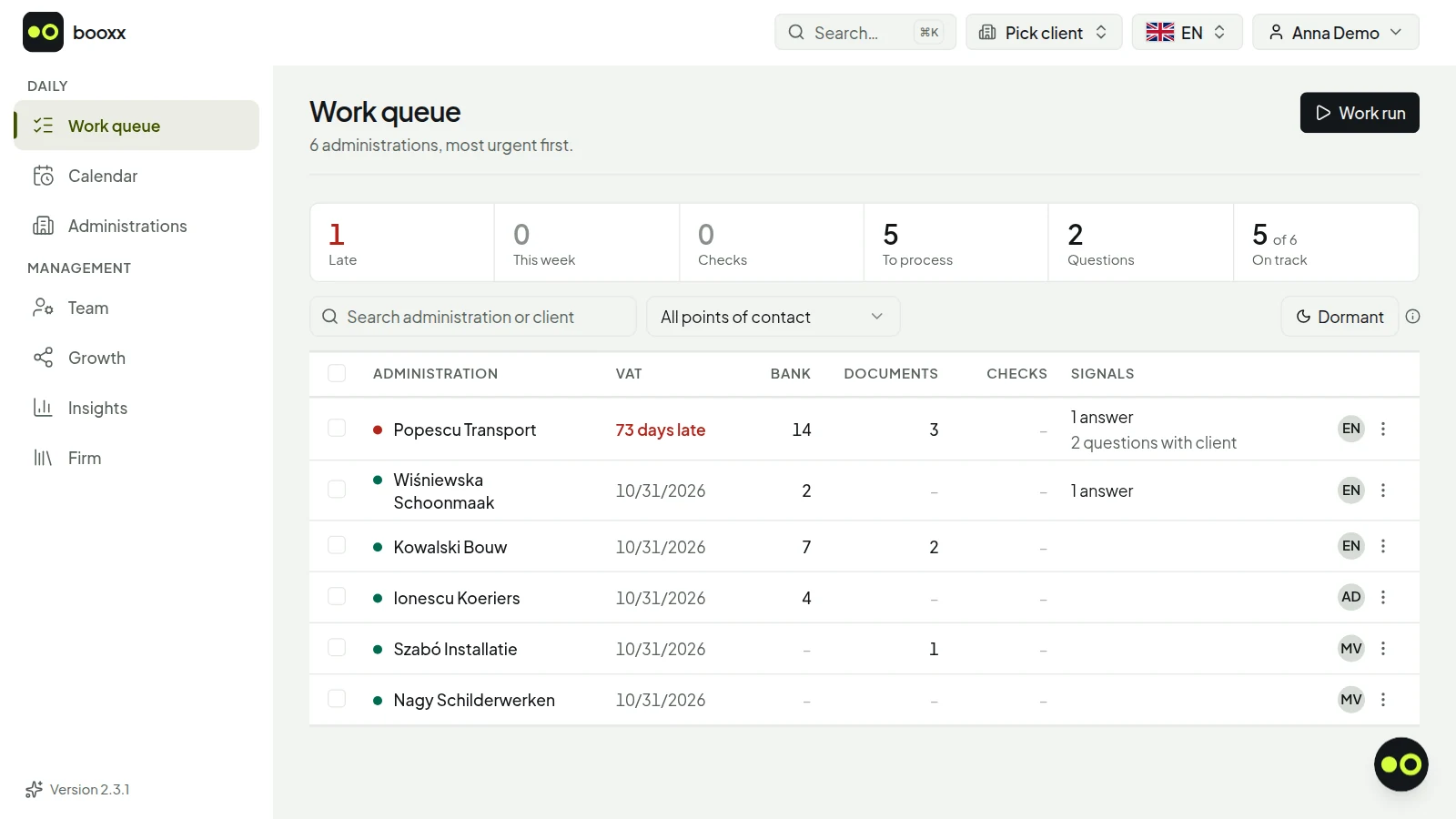
The worklist with six sample clients: the client with an overdue VAT return at the top, the client with nothing open at the bottom. On the right are the initials of the point of contact. Screenshot with demo data.
Try free for 90 daysHow do you do the same task for all your clients in a row?
With a work run. You start it at the top right of the work queue and choose the work you want to do: the VAT return, the reconciliation, the bank, the documents or the questions, or everything that is open. Each option shows how many administrations it yields. The run follows whatever is in your work queue at that moment, including a search term or a filter; if you want your own selection, tick the administrations and start the work run over that selection.
A bar at the top of the screen shows the work you are on and your place in the line, for example client 7 of 27. If a colleague clears the bank of a client further down your line in the meantime, Next skips that client and tells you so. If you open another client by hand, the run stops.
How a work run goes
- Choose the workOne kind of work, several kinds or everything that is open. Order: most urgent first or by name.
- Finish the first clientYou are in that client's administration, on the spot where the work is.
- Next or LaterNext (key ]) takes you to the next step for this client, or otherwise to the same work for the next client. Later moves this client to the back of the line.
- StopStop (key Esc) or the last Next takes you back to the work queue, with the same filters.
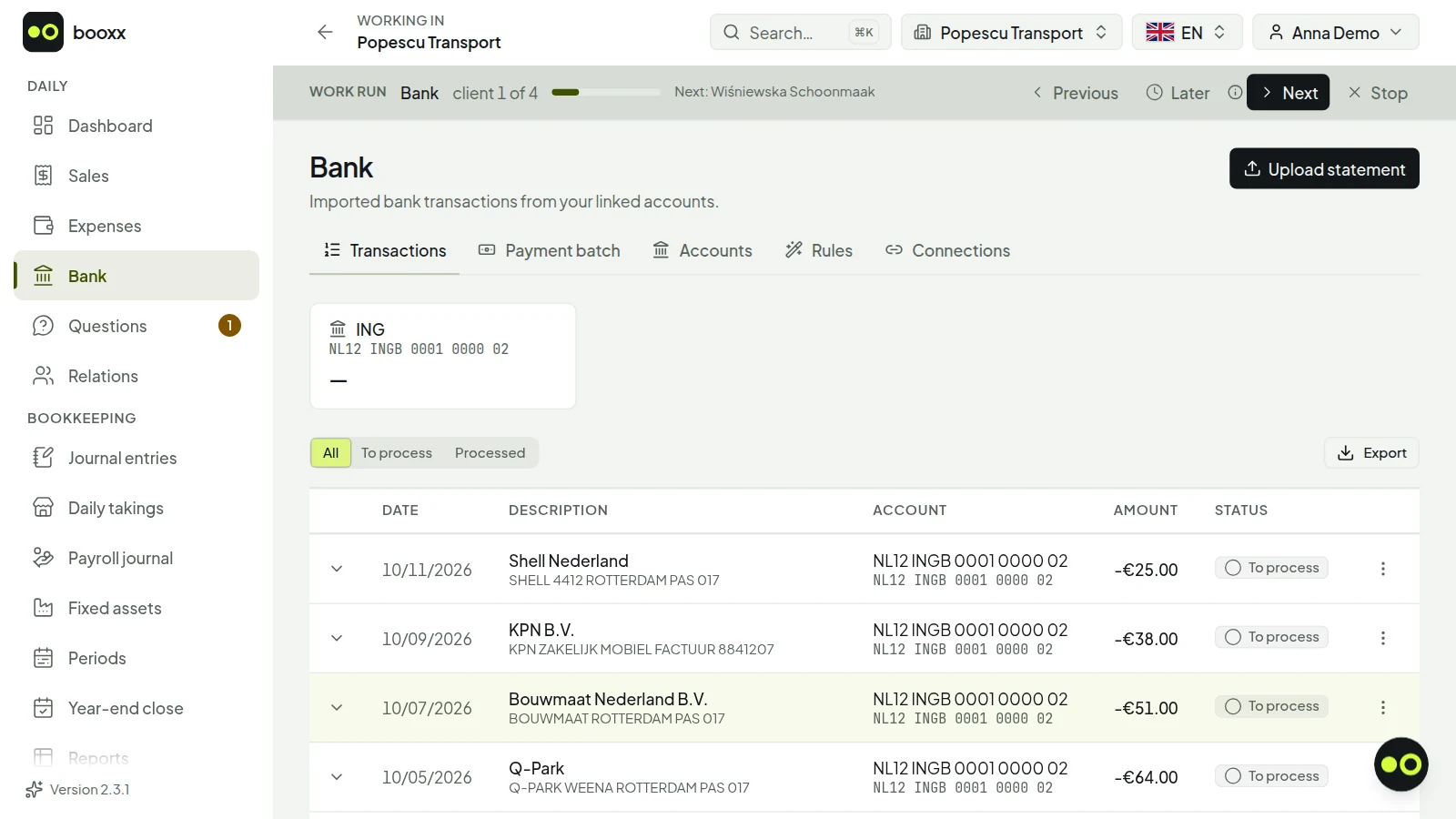
A work run over the bank: you are in the administration of the first of four clients, and Next takes you to the bank of the next one. Screenshot with demo data.
Try free for 90 daysHow do you plan the VAT deadlines of all your clients?
With the calendar. The work queue shows what is waiting now, the calendar shows when it is due. There are two views of the same data: the month for planning, with the number of deadlines per day, and the list for working through them, per week with the nearest on top. For each VAT deadline you see whether it is Late, Ready (no bank transactions, documents or red checks left open) or Work open. Above each week there is a button that starts a work run over exactly the administrations that are ready.
Besides the VAT deadlines, the calendar also shows the trials that are ending and the administrations that are closing. The VAT worksheet is ready with the boxes of the Dutch tax office (Belastingdienst); you file the return yourself, in Mijn Belastingdienst Zakelijk or through your own filing channel.
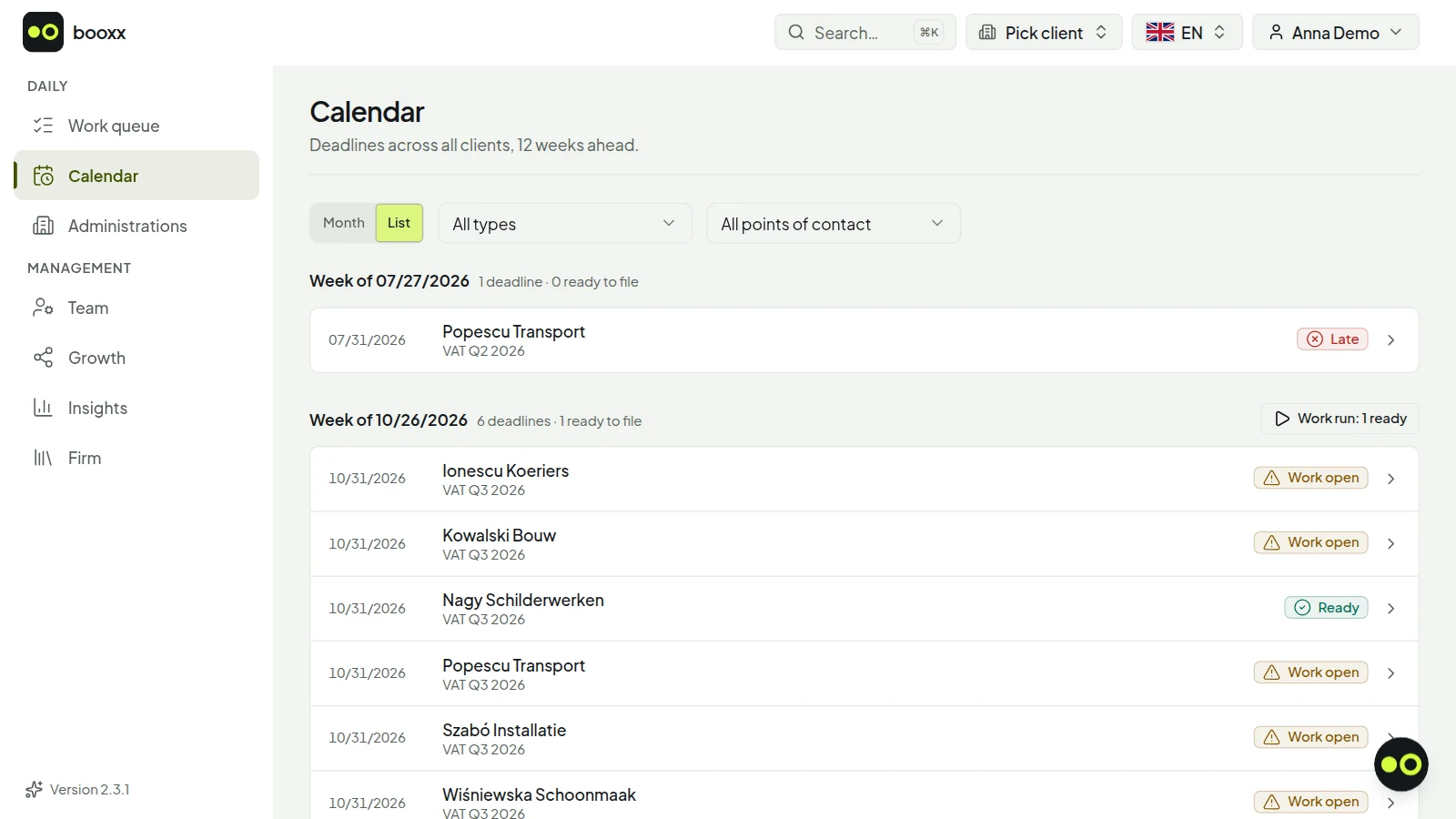
The calendar as a list, with six sample clients: the VAT deadlines per week, and per client whether work is still open. One client has nothing left open; from here you start a work run over such clients. Screenshot with demo data.
Try free for 90 daysHow do you ask a client a question about a booking?
From the work queue: in the menu at the end of the row you choose Ask a question, which takes you to the questions page of that administration. With New conversation you pick a bank transaction that has not been matched yet and type your message, or you ask a general question without a transaction. The client sees on their dashboard and in the menu that a question is waiting for them. The conversation shows the date, amount and description of the transaction, and that is where they reply. Their screen is in the language they chose themselves: Dutch, English, Polish, Hungarian or Romanian. Your message itself is not translated by the software; you write it in a language your client reads.
In the work queue you then see whose turn it is. If the client has replied, that is work for the firm. A question that is still with the client is shown muted: it is not work for you, but whoever calls the client wants to know it is there. Once the transaction is booked, you resolve the conversation.
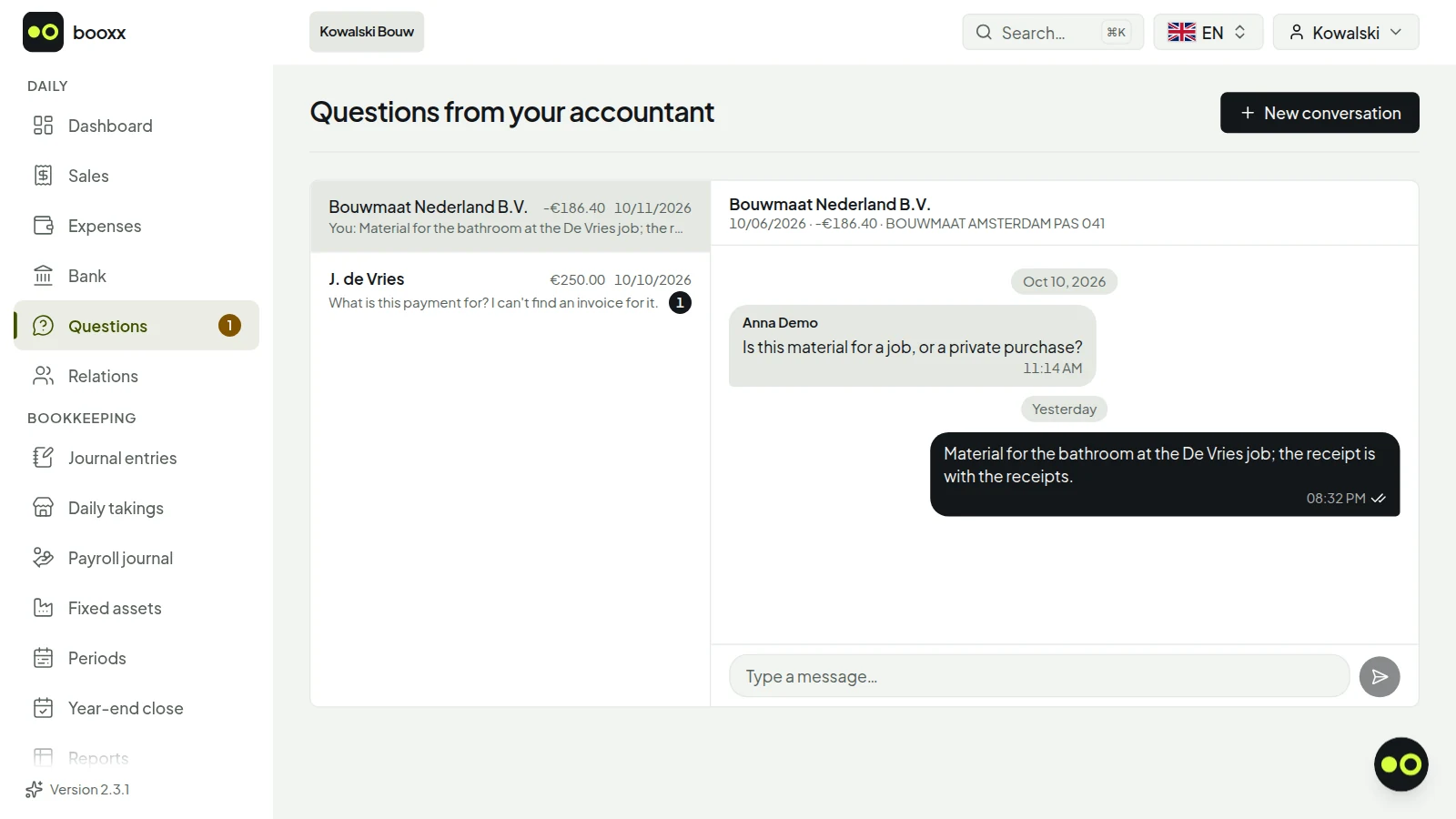
This is how your client sees your question: next to the bank transaction, on a screen in their own language, with a field to answer. You then see the answer in your worklist. Screenshot with demo data.
Try free for 90 daysWho may open which client?
A firm has two roles. An Administrator may open all clients and manages the team, the clients and the settings. A Staff member works in the clients and administrations you assign to them, and does not see the rest. If a client has more than one administration, you choose per administration whether a staff member may open it. Changing permissions asks for your password first, even when you are already logged in.
For each client one colleague is the point of contact. That client's work counts towards them on the Team screen, where you see per staff member how much is open and what was booked and processed under their name in the past 30 days. A client without a point of contact counts towards no one; the screen tells you how many there are.
Administrator and Staff in the firm workspace
| Administrator | Staff | |
|---|---|---|
| Opening clients | All clients of the firm. | Only the clients and administrations assigned to them. |
| Work queue | Chooses whose work to see: all points of contact, their own administrations or one colleague. | Sees the administrations they may open. |
| Team, clients and settings | Invites staff, creates clients and arranges access. | Reads the client list; cannot manage it. |
| Team screen | Sees the whole team. | Sees only their own figures. |
| Notes on a client | Reads and writes them. The client never sees them. | Does not see them. |
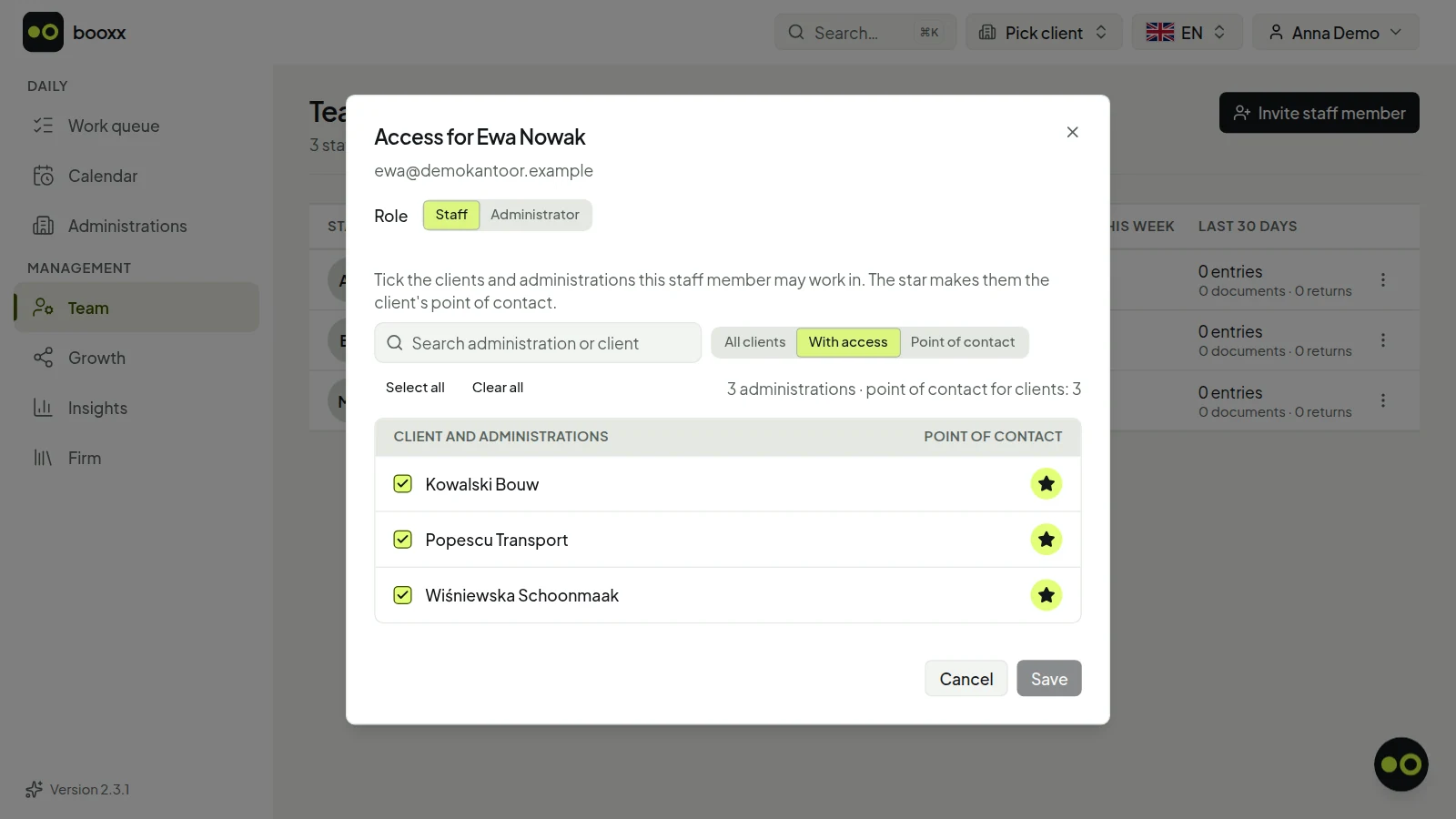
Access per staff member: you tick the clients and administrations someone may work in, and the star makes them the point of contact for that client. Screenshot with demo data.
Try free for 90 daysHow do you keep track of all your clients?
Under Administrations you find your portfolio: every administration on one row, under the client's name. The work queue is about the work waiting now; this list is about who your clients are. Each row shows the legal form and the VAT period, the point of contact, who else has access, the status (for example on hold or still being set up) and the date of the last entry. That last column shows fastest where the bookkeeping has stalled. You search by name, filter by status (the firm administrator also by point of contact) and sort by, among other things, urgency or last entry.
With Client dossier in the menu at the end of the row you open everything about one client: their administrations with the same numbers as in the work queue, their bank accounts, their contacts with their role and the inbox address they email their invoices to. The firm administrator also sees the firm's notes there. If a contact has not yet confirmed their invitation, it says Not confirmed; you see that before they call. When a colleague leaves, the firm administrator ticks their clients and gives them a different point of contact in one go; that first asks for the administrator's password. Pausing and resuming work the same way. A staff member can only read the list.
Five firm screens and the question each one answers
| The question | What you see | |
|---|---|---|
| Work queue | Where is work waiting now? | Per administration the VAT deadline, the bank, the documents, the checks and the questions, most urgent on top. |
| Calendar | When is it due? | The deadlines of all your clients (VAT, ICP, supplementary return) per month or per week, marked Late, Work open or Ready. |
| Administrations | Who are our clients? | Legal form, VAT period, point of contact, status and the last entry. |
| Client dossier | What do we know about this client? | Their administrations, bank accounts, contacts and inbox address, and for the administrator the firm's notes. |
| Insights | How is the firm doing? | Per month: how many administrations are in order, which returns were on time, how long work stayed waiting and what went automatically. |
How do you see how your firm is doing?
With Insights, the monthly screen for the firm administrator. Unless you choose otherwise, it shows the previous, closed month. At the top you see how your administrations were spread over in order, attention and red at the end of that month, with the change from the month before. Below that is the share of that month's VAT, ICP and supplementary-return deadlines that were filed on time, and how long a document or bank transaction stayed waiting before it was posted or matched (the median).
Work done breaks down the entries, processed documents, returns and questions answered by clients per staff member, with the number of clients each one is the point of contact for. Under Done by booxx you see how many bank transactions were matched automatically and how many documents were recognised automatically, converted into hours using the standard times your firm sets itself: by default 2 minutes per bank transaction and 4 per document. The screen itself calls that an estimate. Below that is what booxx costs your firm that month. With Export you get the same figures as an Excel or CSV file.
Try free for 90 days90 days free · no payment method needed · cancel monthly afterwards
How do you start, and what does the software not do?
You request a firm workspace by email: you send your firm's name, roughly how many clients you have and in which languages, and you get an administrator account. After that you set your firm defaults (chart of accounts, journals and VAT codes) and create your clients, empty or with the XAF audit file from their previous software. The rate starts at €9 per managed administration per month, excluding VAT, with no fixed firm fee and no price per staff member.
There are three things the software does not do. There is no payroll in it: you book the payroll journal from your payroll software here. You file the VAT return yourself. And the automatic bank connection is in development: for now you import bank statements as MT940 or CAMT files.
Updated October 2, 2026. General explanation of the Dutch rules, not tax advice — for your own situation, decide together with your accountant or the Dutch Tax Administration.
Frequently asked questions
Can I run several client administrations with one login?
Yes. In the firm workspace of booxx all your clients' administrations are in one work queue, and you open them all with one login. A client with a sole proprietorship and a B.V. has two administrations, each with its own row, its own VAT return and its own periods.
Does my client see the work queue or my notes?
No. The work queue, the Team screen and the notes on a client are for the firm only. The client sees their own administration in the language they chose themselves, and the questions you ask them as you wrote them.
Can I see how much work a colleague has?
Yes. The Team screen shows per staff member the open work for the clients they are the point of contact for, the VAT deadlines of the coming seven days and what was booked and processed under their name in the past 30 days. Those last figures are updated every night.
What happens to the books when a client leaves?
Pausing is always possible; nothing disappears. If one administration stops, you close only that one and the client stays. Before deleting, you first make the export bundle: all bookings, invoices, receipts and attachments in one ZIP file, which can be downloaded for 48 hours. Without an export bundle, or as long as a paid subscription is running, a client cannot be deleted.
Where do I set which chart of accounts a new client starts with?
Under Firm, in Defaults for new clients. It has four parts: Chart of accounts, Journals, Bookkeeping settings and VAT codes. Only an Administrator can open it. What you change applies to clients you create afterwards; an existing client keeps their own setup.
Can I see how much time the software saves our firm?
Yes, as an estimate. The Insights screen counts per month how many bank transactions were matched automatically and how many documents were recognised automatically, and converts that into hours using your own firm's standard times: by default 2 minutes per bank transaction and 4 per document. The firm administrator adjusts those standard times. Next to it you see what booxx costs your firm that month.